

Pair a VR headset with the Dashboard
Meta Quest 3 / 3S · Meta for Work, Shared ModeMeta Quest 3 / 3S · Meta for Work, Individual ModeMeta Quest 3 / 3S · personal Meta accountPICO 4 Ultra EnterpriseFor a VR headset to send training results to the Dashboard, and for you to watch it in Live View, pair it once with the AtlasVR Dashboard. This takes a few minutes. Each AtlasVR training application is paired separately: if you have several on one VR headset, each one shows its own pairing screen the first time it starts.
Before you start
Section titled “Before you start”- You are signed in to the Dashboard as a manager. Coaches cannot pair VR headsets.
- The VR headset is charged, switched on and connected to Wi-Fi.
- The AtlasVR training application is installed on the VR headset. Not every training application works with the Dashboard. If in doubt, ask us.
In the Dashboard: create a pairing code
Section titled “In the Dashboard: create a pairing code”-
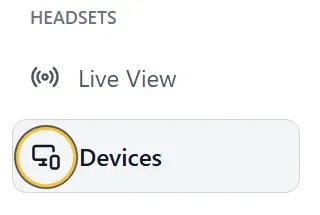
In the menu, open Devices.
-
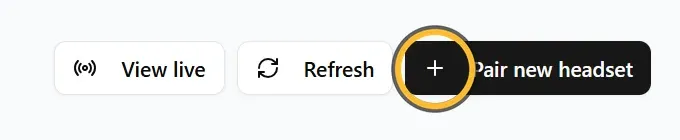
Click Pair new headset at the top right.
-
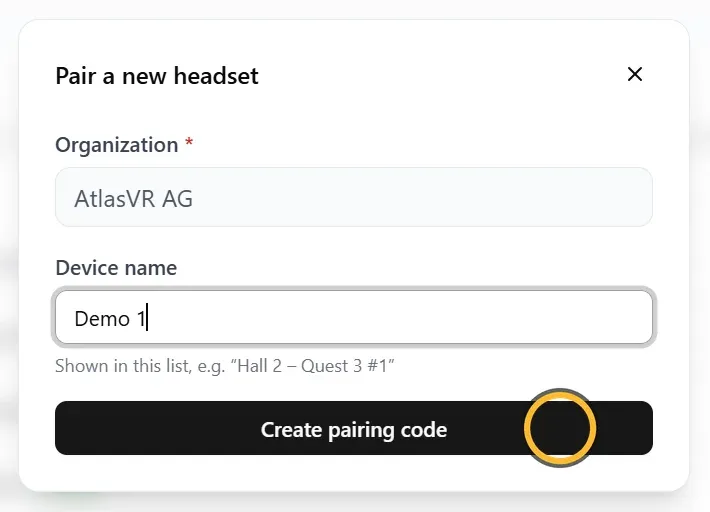
Under Device name, enter a name by which you will recognise the VR headset, for example “Hall 2 - Quest 3 #1”. Put a label with the same name on the VR headset, and you will find it in the list straight away later.
-
Click Create pairing code. The Dashboard shows a QR code. It is valid for 15 minutes and for one VR headset only. Leave the window open in this browser tab: that is where the Dashboard tells you as soon as pairing has worked.
In the VR headset: scan the QR code
Section titled “In the VR headset: scan the QR code”Meta Quest 3 / 3S (any setup)
-
Put on the VR headset and start the AtlasVR training application. If the VR headset is not paired yet, the application shows the Scan QR code screen.
-
The first time, the application explains why it needs the VR headset’s camera: it only uses it to read the QR code, and the images are neither stored nor sent anywhere. Select Continue.
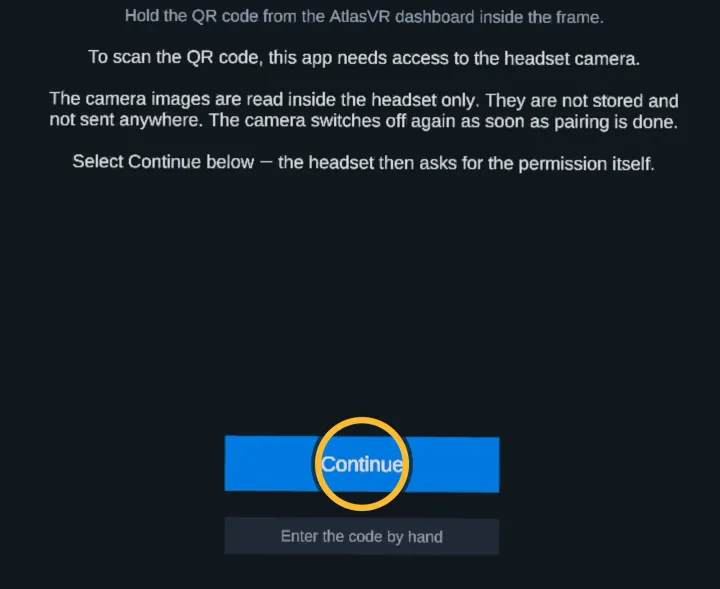
AtlasVR’s screens in the VR headset are always in English. The VR headset shows the prompt in the next step in its system language, which is English in these pictures. -
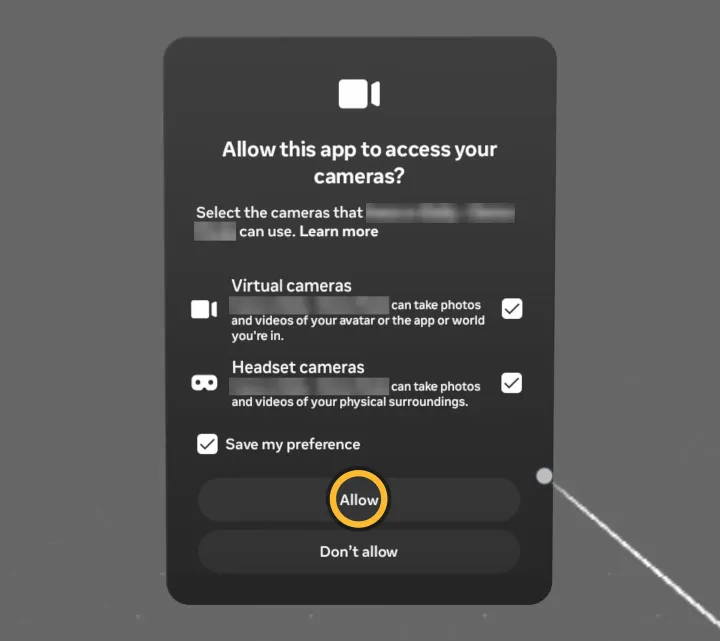
The VR headset itself now asks whether the application may access its cameras. Allow access.
-
Look at the QR code on your screen from a distance of about 40 cm. In the VR headset, you see the camera image in a frame. As soon as the QR code is inside the frame, the VR headset recognises it.
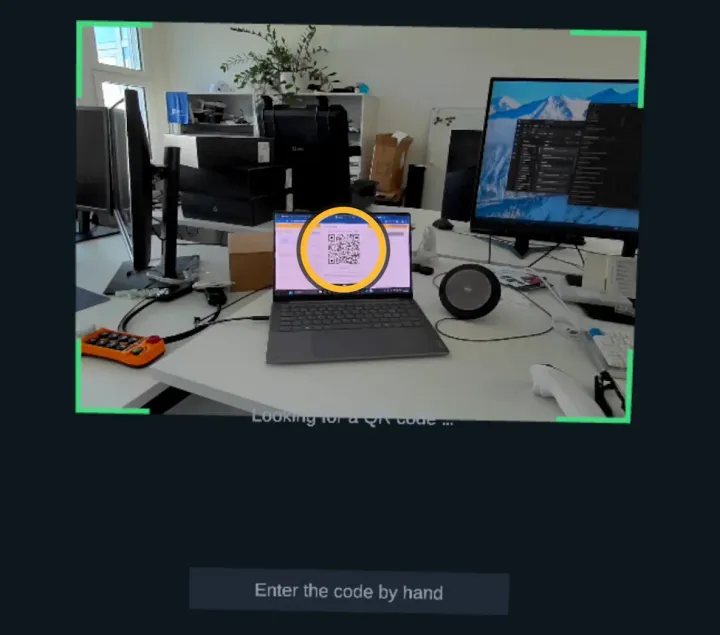
The VR headset pairs itself and then shows Headset paired successfully with the name you entered in the Dashboard. The training application then starts by itself.

If scanning does not work, you can also type in the code: in the Dashboard, expand Show code as text (only if scanning does not work). In the VR headset, select Enter the code by hand and type the code on the keyboard in the VR headset. Pairing codes do not contain the letters I and O or the digits 0 and 1.
PICO 4 Ultra Enterprise
-
Put on the VR headset and start the AtlasVR training application. If the VR headset is not paired yet, it opens a window for scanning QR codes.
-
Look at the QR code on your screen from a distance of about 40 cm until the VR headset recognises it.
If you close the scanning window, it opens again after a short time, until the VR headset is paired. On the PICO 4 Ultra Enterprise, you cannot enter the code by hand.
As soon as the VR headset is paired, the Dashboard shows Headset paired. The VR headset is now in the Paired headsets list, with Allowed in the Access column. The window with the QR code closes by itself.
If it does not work
Section titled “If it does not work”The code has expired
Section titled “The code has expired”Pairing codes are valid for 15 minutes. A code that you have created but not used yet is listed under Pending pairing codes. Open it again with the QR icon. If it has expired, it shows Expired, and it disappears from the list when you reload the page. In that case, create a new code with Pair new headset.
The VR headset says that the server is not responding
Section titled “The VR headset says that the server is not responding”This can happen the first time you pair after a longer break. Scan the same QR code again while it is still valid. The Dashboard only shows Headset paired once the VR headset has actually received the pairing.
The list shows Pairing unconfirmed
Section titled “The list shows Pairing unconfirmed”Pairing unconfirmed in the Access column means that the VR headset has never contacted the server since it was paired. Right after pairing, this shows for a few seconds, until the VR headset contacts the server for the first time. If it stays, the VR headset probably did not receive the response: pair it again. If this entry still shows Pairing unconfirmed afterwards, delete it.
All seats are taken
Section titled “All seats are taken”If your organisation has a fixed number of seats for VR headsets, the pairing window shows how many of them are in use. If it says Limit reached, the Dashboard rejects new VR headsets. Delete a VR headset you no longer need with the Delete device permanently icon: only deleting frees a seat, Block does not. A VR headset that is already paired and allowed can be paired again even when all seats are taken. If you need more seats, write to us.
Only for: Meta Quest 3 / 3S (any setup)
The camera is blocked
Section titled “The camera is blocked”If the request for camera access was declined, the VR headset cannot read the QR code. Allow the AtlasVR training application to access the camera in the VR headset’s settings, or type in the code by hand (see above).