

Prevent the Meta Quest 3 from going into standby
Applies to:Meta Quest 3 / 3S (any setup)
These instructions do not match your device.
When someone takes off the Meta Quest 3, it goes into standby (sleep mode) after a short time. You can prevent this in two steps: in the power settings, extend the time after which the display switches off, and cover the proximity sensor between the lenses. This is worth doing at a trade fair, for example, or when many people train one after the other: otherwise it takes time to wake the VR headset every time, and without standby the play area shifts less often.
1. Extend the time before standby
Section titled “1. Extend the time before standby”-
Press the Meta button on the right controller.
-
In the system menu, open the quick settings: select the display of time, Wi-Fi and battery on the left.
-
Select Settings at the top right.
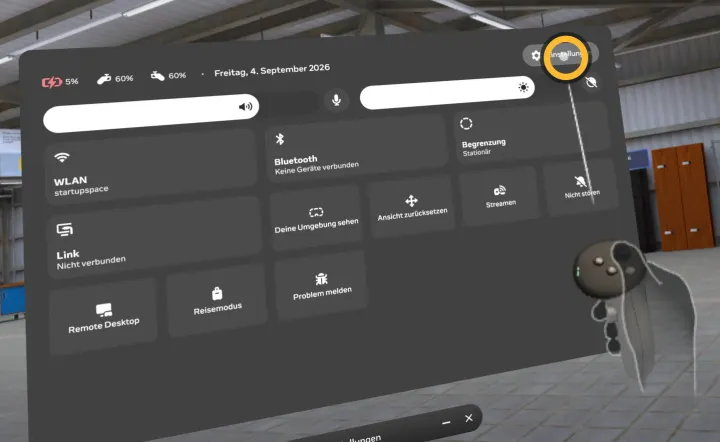
The screenshots show the headset menus in German. In English, the buttons are in the same place. -
Open the general settings, then the power settings.
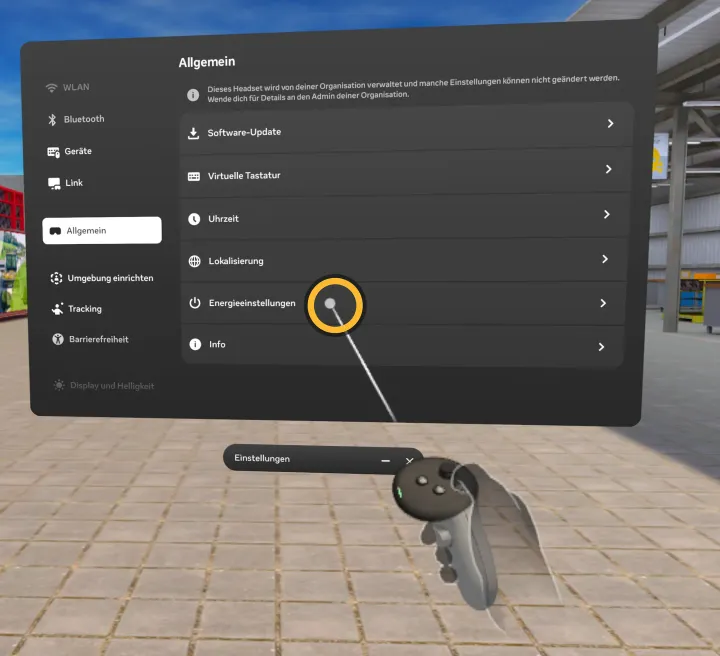
-
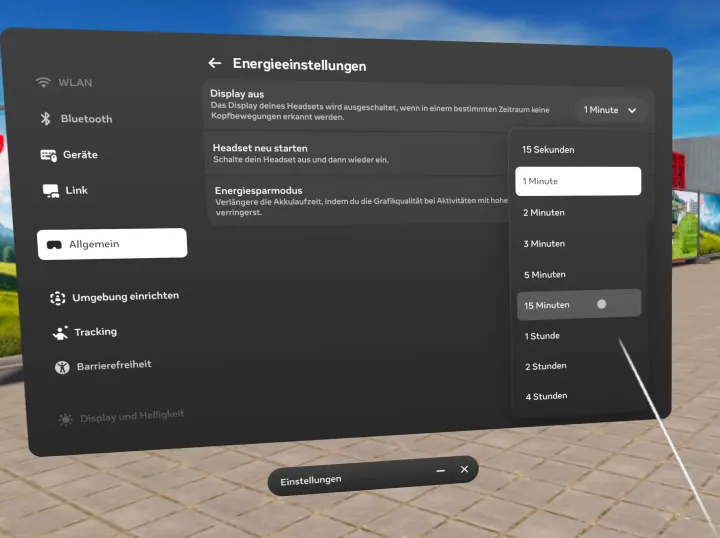
Make a note of the time after which the display currently switches off. Then select a longer time, for example 4 hours.
Only for: Meta Quest 3 / 3S · Meta for Work (both modes)
If the general settings show the note that the headset is managed by your organisation and you cannot change the time, it is fixed for your VR headsets. Contact AtlasVR and we will sort it out with you.
2. Cover the proximity sensor between the lenses
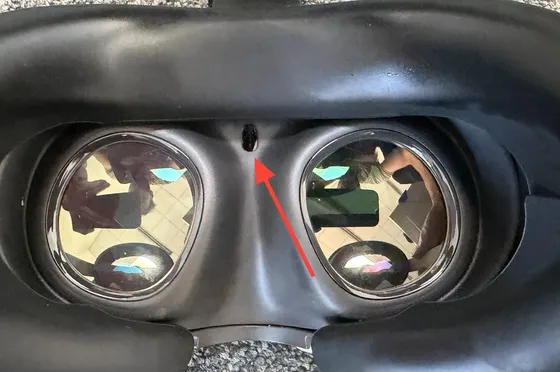
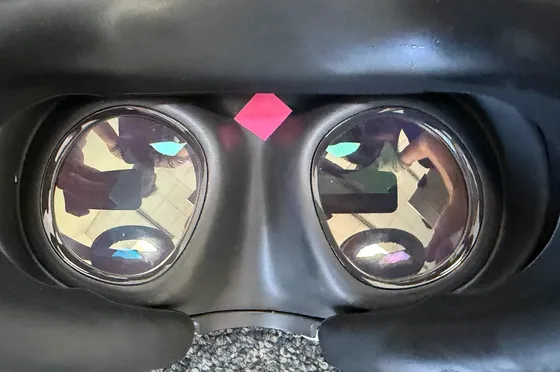
Section titled “2. Cover the proximity sensor between the lenses”The setting alone is not enough. The VR headset also goes into standby when the proximity sensor between the lenses detects that nobody is wearing it. Cover this sensor with a sticky note or a piece of adhesive tape.
If it does not work
Section titled “If it does not work”The VR headset still goes into standby
Section titled “The VR headset still goes into standby”Check that the sticky note covers the proximity sensor between the lenses completely and that the longer time is set for switching off the display.