

Install the ordered training application (personal Meta account)
Applies to:Meta Quest 3 / 3S · personal Meta account
These instructions do not match your device.
After you order, Meta sends an invitation to the VR headset’s email address. Accept it, and the training application installs itself the next time the VR headset is connected to the internet. This guide applies to a Meta Quest 3 with a personal Meta account.
Before you start
Section titled “Before you start”- When you ordered, you gave the email address that the VR headset’s Meta account is registered with. Which address is that?
- You can access this mailbox and you know the password of the Meta account. If AtlasVR set up your VR headsets and you do not have these sign-in details, write to us.
Accept the invitation
Section titled “Accept the invitation”-
In the mailbox of the VR headset’s email address, open the invitation email from Meta Horizon. Its subject line mentions an invitation to a release channel.
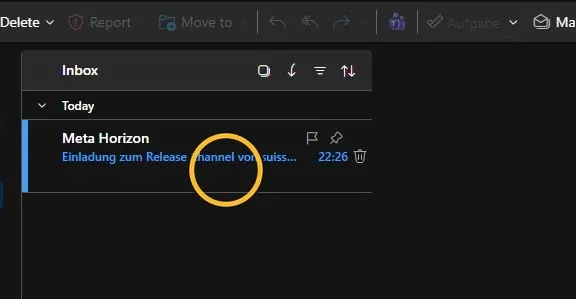
Example of an invitation, recorded in German. Your invitation names the training application you ordered. -
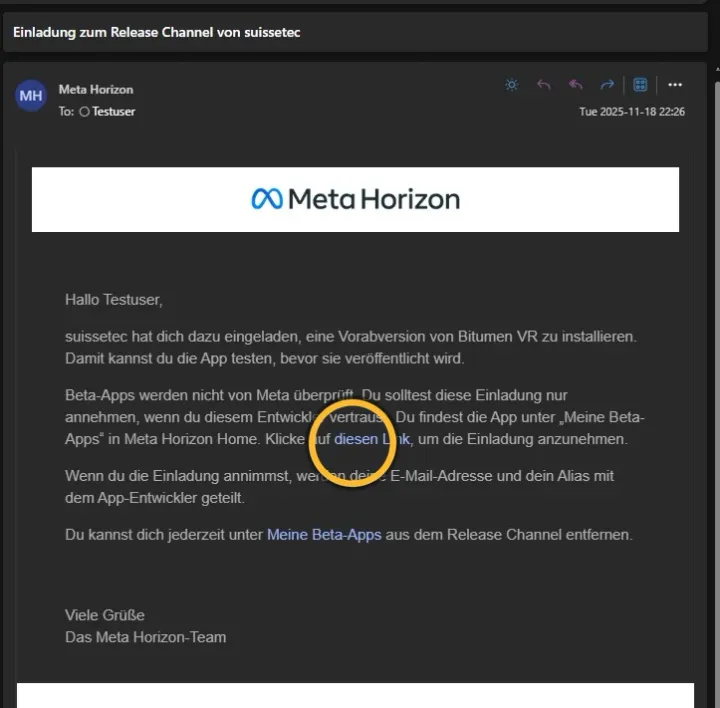
In the email, click the link to accept the invitation.
-
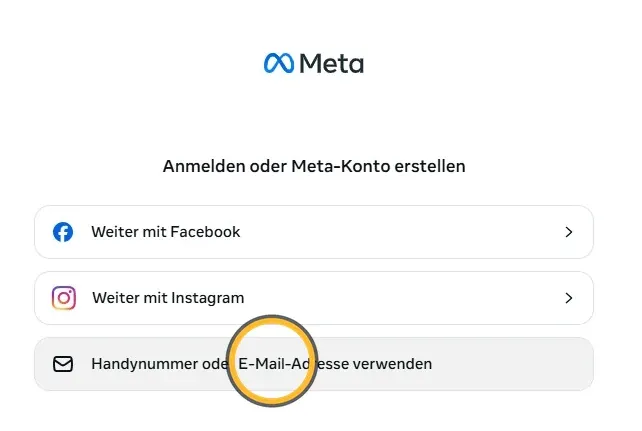
Sign in with the VR headset’s Meta account: choose to use a mobile number or email address, then enter the email address and password.
-
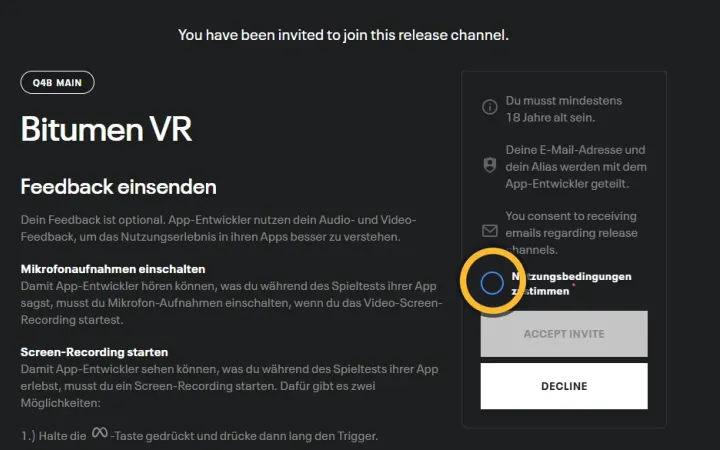
Tick the box to agree to the terms of service.
-
Click ACCEPT INVITE.
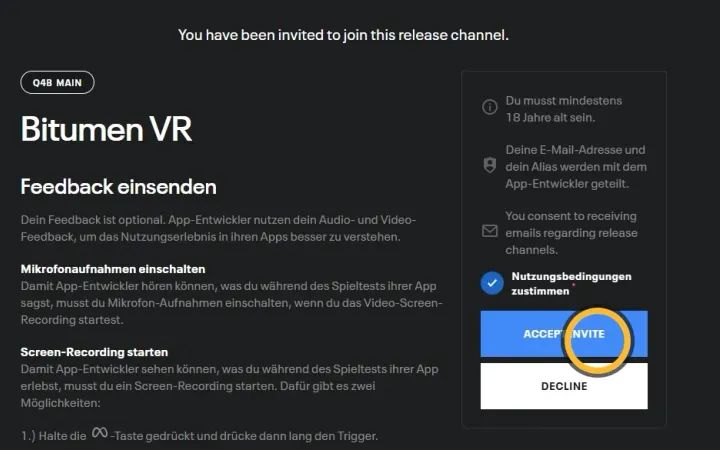
The training application is installed the next time the VR headset is connected to the internet. When you accept, Meta shares this Meta account’s email address and username with the application’s developer.
Next step
Section titled “Next step”If your organisation uses the AtlasVR Dashboard, pair the VR headset with the Dashboard. Training results then reach the Dashboard.
If it does not work
Section titled “If it does not work”No email from Meta Horizon
Section titled “No email from Meta Horizon”- Check your spam folder.
- Check that you gave the email address of this VR headset’s Meta account when you ordered (how to find it).
You can also accept the invitation without the email:
-
Open secure.oculus.com and sign in with the VR headset’s Meta account.
-
Click Preview apps.
-
Next to the training application you ordered, click RESPOND.
-
Tick the box to agree to the terms of service.
-
Click ACCEPT INVITE.
If the training application is not listed there, write to us and include the VR headset’s email address.
Which email address is the VR headset registered with?
Section titled “Which email address is the VR headset registered with?”-
Put on the VR headset and press the Meta button on the right controller.
-
In the system menu, select the display of time, Wi-Fi and battery on the left. This opens Quick settings.
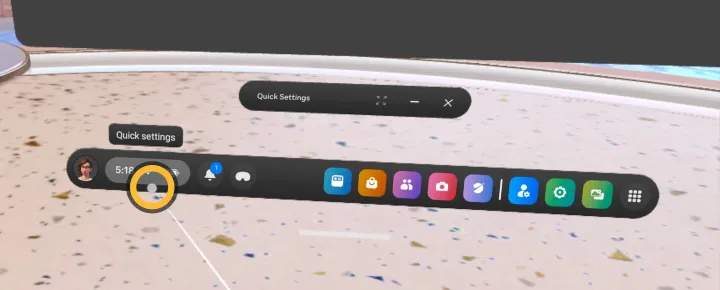
-
Select Settings at the top right.
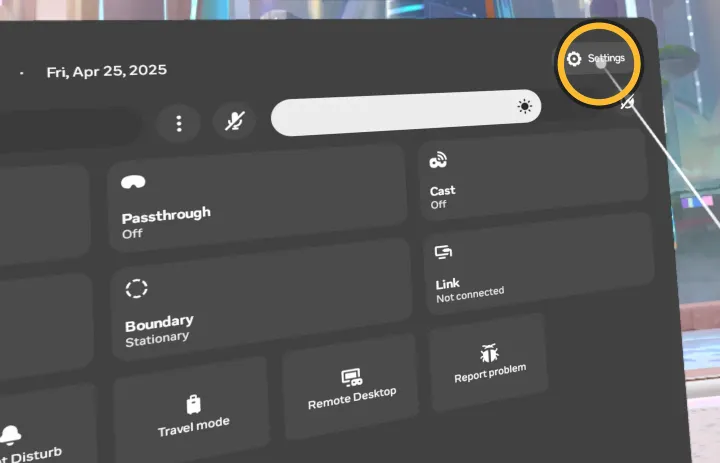
-
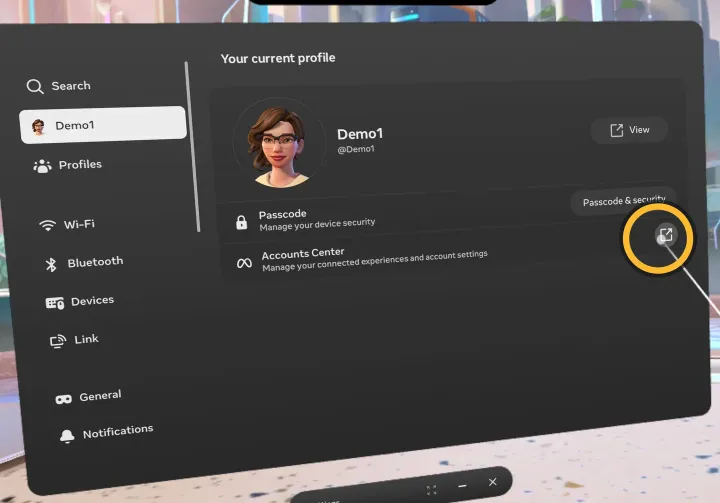
Select your account name at the top of the list on the left.
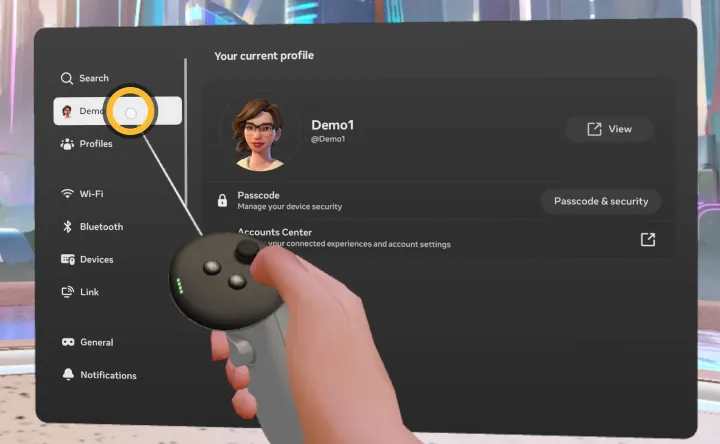
-
On the right, open Accounts Center.
-
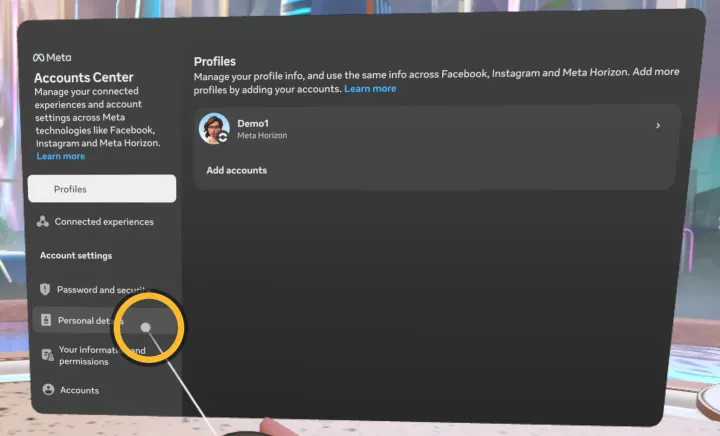
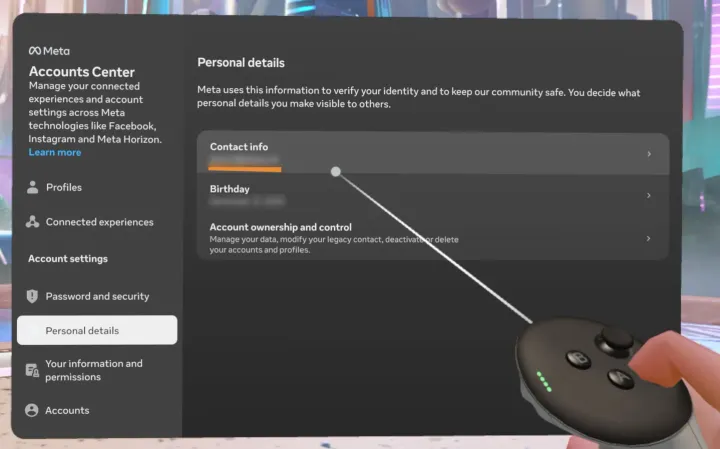
Select Personal details. The account’s email address is under Contact info.
The training application does not appear in the VR headset
Section titled “The training application does not appear in the VR headset”The installation only starts once the VR headset is connected to the internet. In the quick settings, check that the VR headset is connected to Wi-Fi, and leave it switched on until the training application appears.