VR quickstart for Meta Quest 3
Applies to:Meta Quest 3 / 3S (any setup)
These instructions do not match your device.
The essentials for a training session with the Meta Quest 3. The same steps are on AtlasVR’s printed quickstart card.
1. Turn the VR headset on and off
Section titled “1. Turn the VR headset on and off”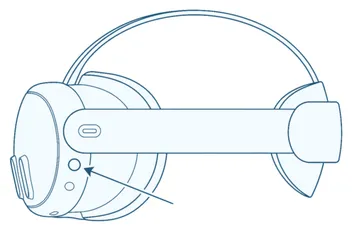
Press and hold the power button on the left side of the VR headset for about 3 seconds until you hear a beep.
To switch it off, press and hold the same button until the VR headset shows the option to power off, then confirm.
2. Set the play area
Section titled “2. Set the play area”The play area is where you move during training. If you get too close to its edge, the VR headset shows the edge. There are two types:

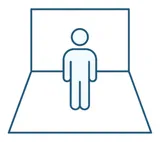
The right type depends on the training. If in doubt, ask your instructor or AtlasVR. In the VR headset’s quick settings, the play area is called Boundary. There you can also see which type is currently set.
3. Teleport
Section titled “3. Teleport”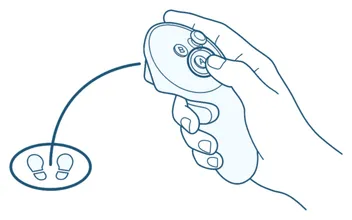
Press and hold the A button (right) or the X button (left), select the target point and release the button. Not every application supports teleportation.
Controller mapping
Section titled “Controller mapping”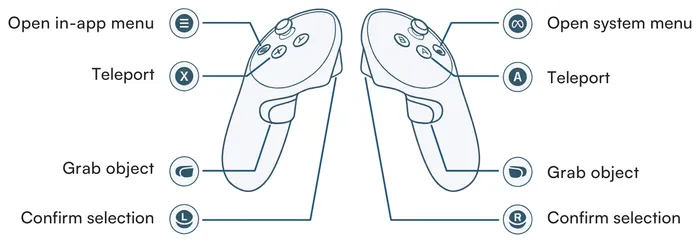
| What you want to do | Left controller | Right controller |
|---|---|---|
| Open the in-app menu (the menu of the running application) | Menu button (☰) | |
| Open the system menu | Meta button (∞) | |
| Teleport | X button | A button |
| Grab an object | Grip button (on the side of the handle) | Grip button |
| Confirm a selection | Trigger (at the front, under your index finger) | Trigger |