

Set up a new Meta Quest 3 with a personal Meta account
Applies to:Meta Quest 3 / 3S · personal Meta account
These instructions do not match your device.
Set up a new Meta Quest 3 or Meta Quest 3S yourself, with a personal Meta account. For this, you need a smartphone with the Meta Horizon app. Afterwards you can order and install training applications.
Before you start
Section titled “Before you start”- The Meta Quest 3 or 3S with both controllers.
- A separate email address for this VR headset. Ideally, use a mailbox of your organisation that several people can access. Meta sends a confirmation code to it, and later the invitation to the training application.
- A smartphone or tablet with the latest version of the Meta Horizon app (Android, iPhone and iPad) and Bluetooth switched on.
- Wi-Fi with internet access. A hotspot or guest Wi-Fi usually works too.
1. Create a Meta account
Section titled “1. Create a Meta account”-
Open the Meta Horizon app and choose to create a new account.
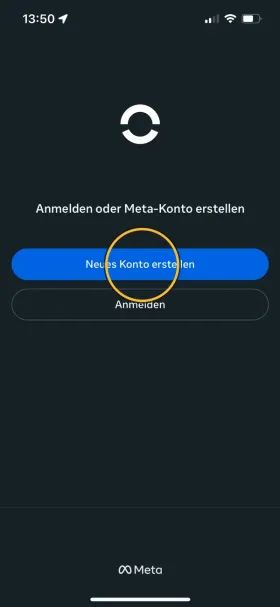
The screenshots show the app in German. In English, the buttons are in the same place. -
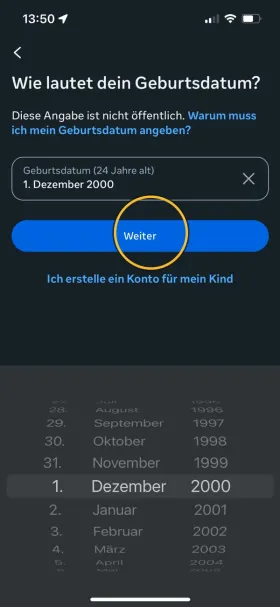
Enter your date of birth and continue. Whoever creates the account must be at least 18 years old. Otherwise you cannot accept the invitation to the training application later.
-
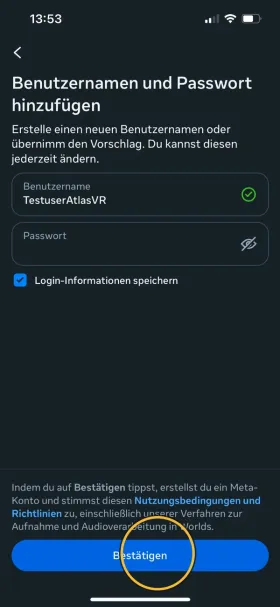
Choose a username and a password, and confirm.
-
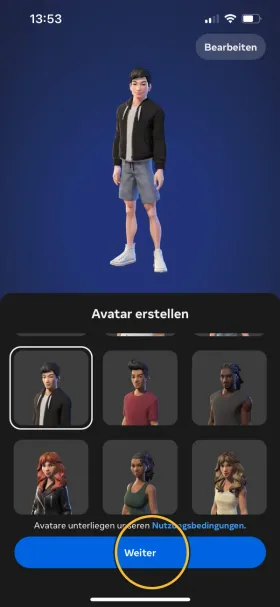
Pick any avatar and continue.
2. Add the VR headset in the app
Section titled “2. Add the VR headset in the app”-
Tap the VR headset icon at the bottom right.
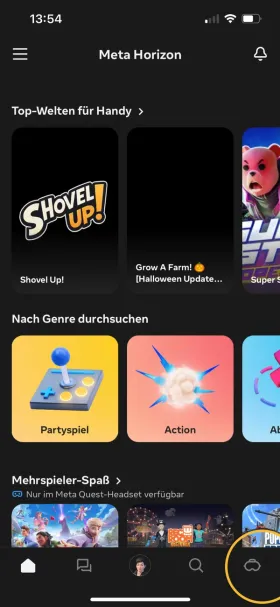
-
At the top, tap the button to pair a VR headset.
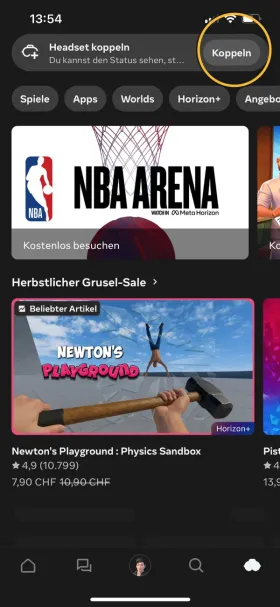
-
Enter a first name, a last name and the email address for this VR headset, and continue. Anyone who uses the VR headset can see these details later.
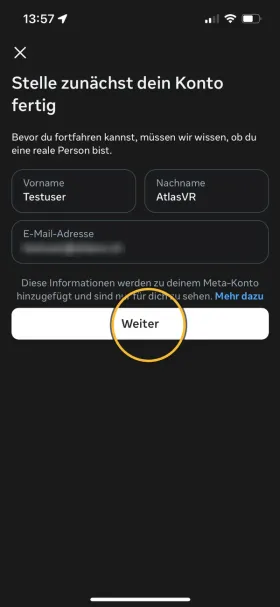
-
Meta sends a confirmation code to this email address. Enter the code and finish.
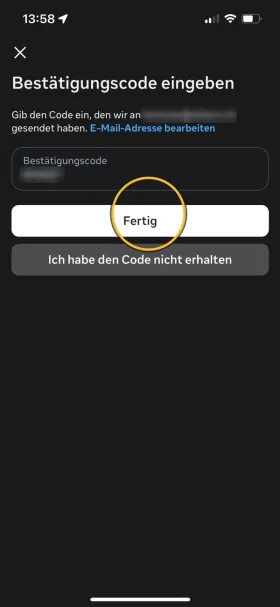
-
Select your model, for example Meta Quest 3.
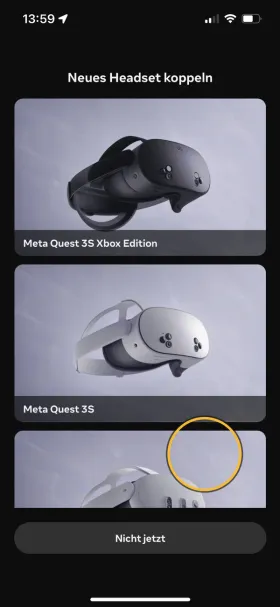
-
Choose how the VR headset connects to Wi-Fi: select the option to enter the Wi-Fi details in the VR headset. You then enter the Wi-Fi password in the VR headset with the controllers.
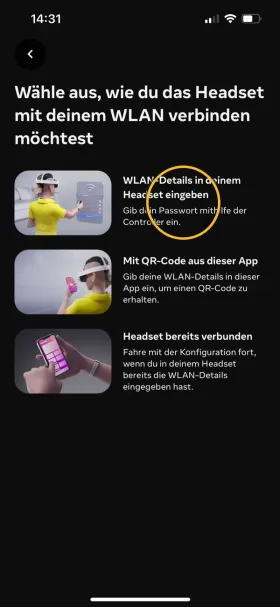
-
The app then asks you to put on the VR headset to connect it to Wi-Fi. Leave the app open.
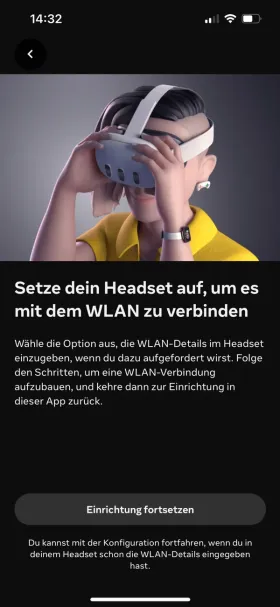
3. Turn on and update the VR headset
Section titled “3. Turn on and update the VR headset”-
Unpack the VR headset. Remove the protective film from the lenses and pull the plastic tabs out of the controllers. The tabs protect the batteries during transport.
-
Press and hold the power button on the left side of the VR headset until you hear a beep. The button is below the charging port.
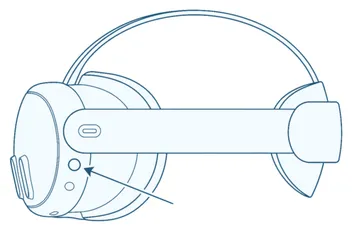
-
Put on the VR headset and follow the on-screen instructions. Use the controllers to enter the Wi-Fi password.
-
As soon as the VR headset is connected to Wi-Fi, tap the option in the app to continue the setup.
-
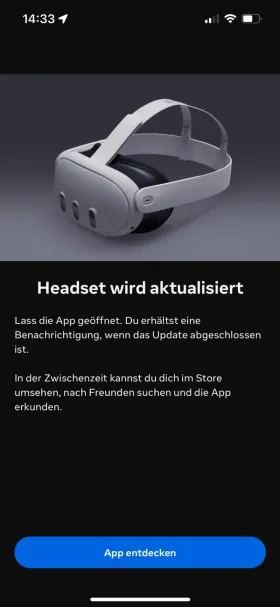
The VR headset now downloads a software update. You can take off the VR headset while you wait. Meanwhile, the app shows that the VR headset is being updated. Leave the app open: it tells you when the update is finished.
4. Finish the setup
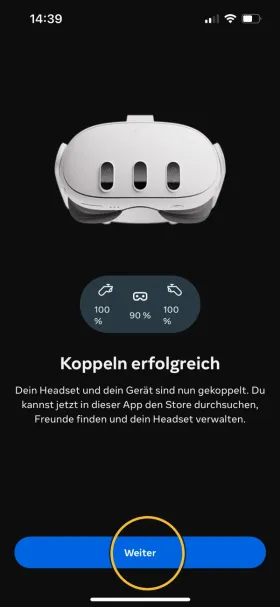
Section titled “4. Finish the setup”Once the update is finished, the app confirms that pairing was successful.
-
Continue in the app.
-
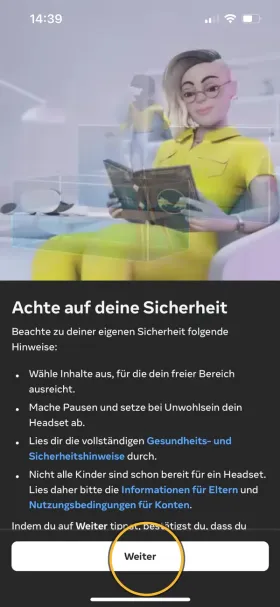
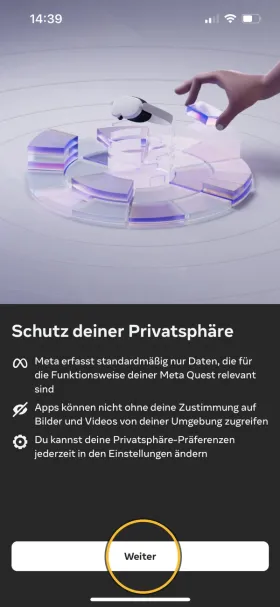
Read the safety and privacy notices and confirm each one to move on.
-
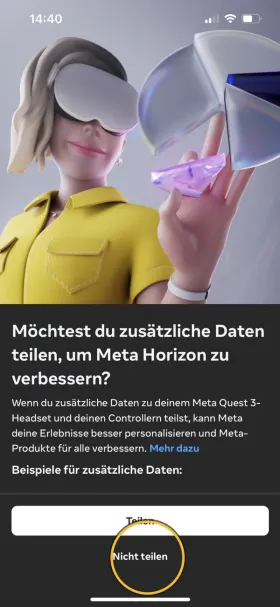
When the app asks whether you want to share additional data with Meta, choose not to share. It makes no difference to the training.
-
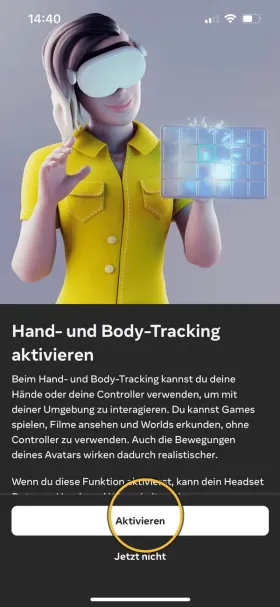
Turn on hand and body tracking. Some applications use it.
-
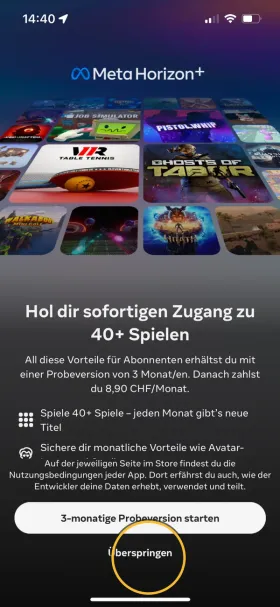
You do not need the Meta Horizon+ trial for training. Skip it.
-
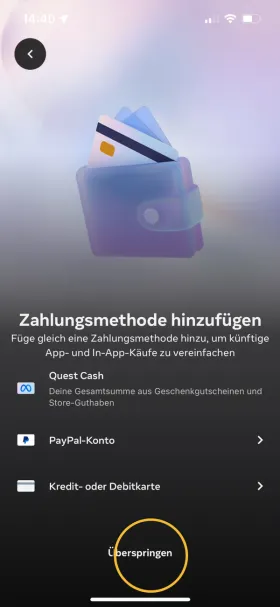
You do not need a payment method either. Skip this step too. You can add one later at any time.
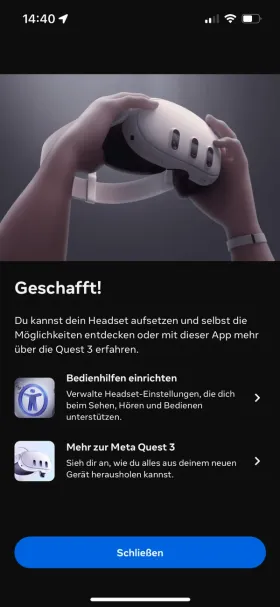
The app confirms that you are done. The VR headset is now set up. The first time you put it on, it shows a short tutorial on how to use it. You can also find the essentials in the VR quickstart.
Next steps
Section titled “Next steps”- Order the training application: give the email address of this VR headset when you order. Then install the training application.
- Pair with the AtlasVR Dashboard: if your organisation uses the AtlasVR Dashboard, pair the VR headset with the Dashboard once the training application is installed. This is a different pairing from the one in the Meta Horizon app. Training results then reach the Dashboard, and in Live View you can watch what is happening in the VR headset.
If it does not work
Section titled “If it does not work”The confirmation code does not arrive
Section titled “The confirmation code does not arrive”Check your spam folder. If you mistyped the email address, correct it in the app. If the code still does not arrive, tap the option saying that you did not receive the code.
The app cannot find the VR headset
Section titled “The app cannot find the VR headset”Check that the smartphone’s Bluetooth is switched on and that the Meta Horizon app has the permissions it needs.
The app is stuck on the update screen
Section titled “The app is stuck on the update screen”Once the update in the VR headset has finished (put it on briefly to check), tap the option to explore the app, then continue pairing in the app.