

Which device do I have?
Meta Quest 3 / 3S · Meta for Work, Shared ModeMeta Quest 3 / 3S · Meta for Work, Individual ModeMeta Quest 3 / 3S · personal Meta accountPICO 4 Ultra EnterpriseSome guides differ depending on the VR headset and on how a Meta Quest is set up. Choose your device once, and the help centre shows you the matching steps first. Your choice is saved in this browser. If you have several types of VR headset, select all of them.
Which VR headset do you have?
Section titled “Which VR headset do you have?”The name is on the packaging. You can also recognise the VR headset by its front:
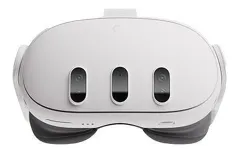
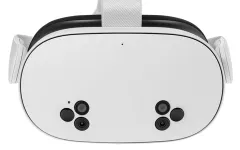
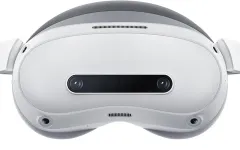
Or by the right controller:
- Meta Quest 3 or Meta Quest 3S: the right controller has a button with the Meta logo (∞), the Meta button. The guides for the Meta Quest 3 also apply to the Meta Quest 3S.
- PICO 4 Ultra Enterprise: the right controller has no Meta button. For the PICO 4 Ultra Enterprise, this help centre covers only one setup.
How is your Meta Quest set up?
Section titled “How is your Meta Quest set up?”A Meta Quest 3 or Meta Quest 3S can be set up in three ways.
Meta for Work: Shared Mode
Section titled “Meta for Work: Shared Mode”Several people use the same VR headset without their own Meta account. The VR headset is managed by your organisation, usually by the IT department or by AtlasVR on your behalf. That is why the general settings show a note at the top saying that the headset is managed by your organisation.
To open the settings, press the Meta button on the right controller, open the quick settings in the system menu and select Settings at the top right. The general settings are in the list on the left.

Meta for Work: Individual Mode
Section titled “Meta for Work: Individual Mode”The VR headset is signed in with a work Meta account. This account is managed by your organisation, usually by the IT department or by AtlasVR on your behalf. Here too, the settings show the note that your organisation manages the VR headset.
Personal Meta account
Section titled “Personal Meta account”The VR headset is signed in with an ordinary Meta account and is not managed by your organisation. Each VR headset should have its own Meta account with its own email address. Whoever set up the VR headset has the sign-in details: your organisation or AtlasVR. To set up a new VR headset yourself, see Set up a new VR headset.
Still not sure?
Section titled “Still not sure?”Contact AtlasVR by email at support@atlasvr.ch or by phone on +41 44 589 67 74. Give the name of the VR headset as it appears in the AtlasVR Dashboard under Devices. We will sort it out with you.